Apr 23, 2014

Digital Assessments

Monday, April 21st I used some after-school time to share some tools for creating digital assessments. One of the great things about being able to use digital tools to assess is the wide variety of methods available for creating the assessments. Here are some more reasons I shared for using digital assessments:


To the last bullet point, I also shared this photo. It's my classroom at my previous school, rearranged for blended learning.  The table islands you see in the middle were set up so that students could take assessments when THEY were ready to take them.

In a 1:1 environment, one of the things you'll notice is that the classroom becomes much more "student centered"; with that comes opportunity to differentiate not only learning but assessing.

If the teacher has a self-paced learning environment for a particular lesson or unit it only makes sense that students, if feasible, should not have to take assessments as before -- all on the same day.  Some students are, after all, ready after 3 days; others not for 6.  So students could sign up to take an assessment when ready and would be asked to take it in my presence in that area.  I planned it so that the first 10 minutes of assessment days in class would be for general questions; then, students with further needs could quietly approach me with their laptops for other questions while I stayed in the assessment area.

Not something a teacher would always have to do, but this kind of flexibility can be great for students and is much more easily achieved in a 1:1 environment.


So here is the list of resources/ links/ notes for what was shared in the session.  Browse below or get your own copy by using THIS LINK


Apr 12, 2014

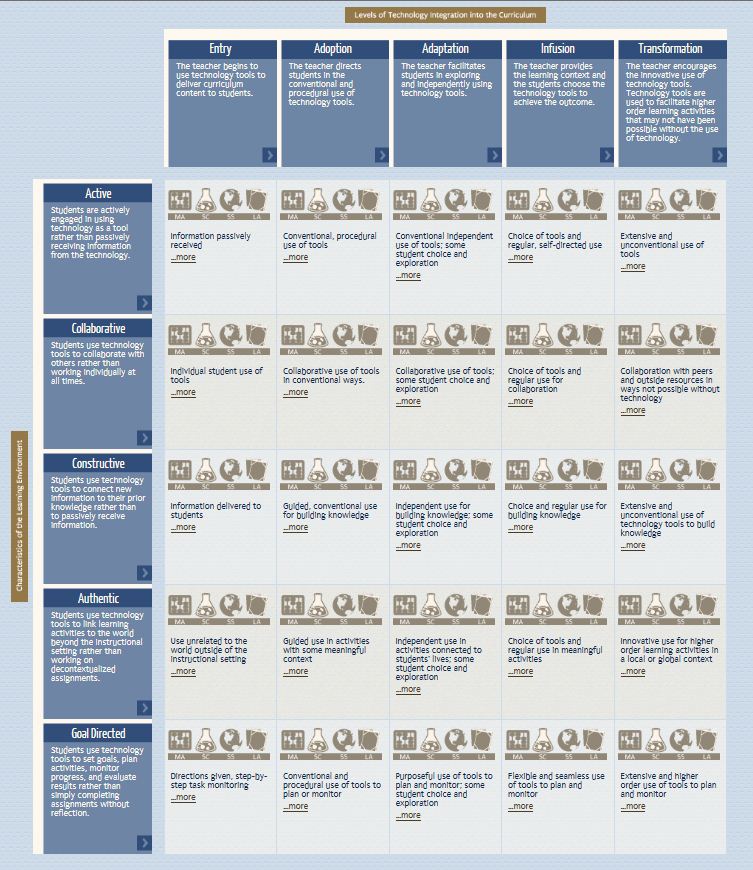
Technology Integration Matrix & Videos


As you experiment with new ways of enhancing learning through the use of technology, you'll continuously be assessing which digital lessons provide the most bang for your buck in terms of meeting your curriculum needs while still creating a meaningful learning environment. 


Here's some food for thought:


  The Florida Center for Technology Development has created the Technology Integration Matrix, which is comprised of characteristics of purposeful learning environments crosswalked with teacher technology integration levels. 

What's especially helpful is that, in publishing this matrix, they've also embedded videos of teachers discussing/demonstrating lessons in core subjects (math, science, social studies, language arts) to illustrate each cell of the matrix. I don't know about you, but I always learn a lot just from glimpsing inside another classroom.


NOTES:

  • Although these cover only core subjects, a teacher of any subject can benefit as the purpose is to inspire and get your own creative juices flowing -- the same is true for videos that do not take place in a middle school classroom. 
  • The schools here seem to be Apple/MAC happy, but adjusting the lessons to a PC or Chromebook format shouldn't pose an impediment to using the ideas presented.

***********************
*Here is the MAIN MATRIX LINK WITH VIDEOS ; FYI: The videos use Quicktime ...  you  may be asked for permission to run the video OR you may have to download it if it's not already on your computer;  HERE is where you can download if need be.   
***********************


As you view the matrix, I hope you won't make the mistake of "judging" yourself based on where you are on the matrix -- instead, use it as a way to see, over time, how your classroom -- and you -- are transforming.


Feb 27, 2014

Waiver Day Information Video on Why & When to integrate Technology


Our Waiver Day was cancelled and instead made a calamity make up day, but there was some information that we planned to share on the day that we now have to find a new way to share.

One of those bits of information is for those still trying to get a grasp on their place in the whole 1:1 thing.  For them, these two questions come up quite often: What should be my purpose for integrating technology, and How do I know when integrating technology into my lesson is a good idea?

Well there are a couple of mental "checklists" that I've found useful in helping me answer those two questions.  I planned to share them, as well as illustrate them with digital tools as examples, on Waiver Day.  

Since it's not something that could now be done in person, I thought, Hey, why not put them in a video?  I share those lists in the video below, along with an email from the parent of one of Sara Lang's students (thanks for letting me share it, Sara) that I think is right on the money and proof positive about why what we're doing with our 1:1 program is so important.

Also, I've made a list of resources to illustrate one of those checklists.  They include some sites and functions I incorporated in the video, as well as interactive sites I've found that you may want to add to your arsenal of digital tools (I also tested them all out on the Chromebook). I'll add more interactive websites as I find them.

The checklists give me a lens through which to view technology, and I hope they'll provide you with a little focus as you consider why & when to integrate technology. 


Just a bit of FYI related to this video. I knew it was possible to add links (hotspots) in Youtube videos, and since I always like to challenge myself to learn/try something new on every project I start, I thought I would make the 1:1 video more interactive by adding places where the watcher could click on the actual video to get more information.  I made the video with that in mind.

Well, to quote Gomer Pyle (remember him?!), Surprise, surprise, surprise! 

When I went to add those hotspots, I realized that now only certain types of links can be embedded in a Youtube video (like links to Google Sites, for instance) -- but not just any link I wanted to use.  So I had to go back earlier this week and do some re-editing to the video to adapt to that little surprise. For this reason, the page of resources is linked under the posting date of the video on Youtube.

Feb 22, 2014

Staff Meeting, Feb. 24.2014

1:1 Essential #1

There are 4 key 1:1 essentials:
  1. Having a digital “Home base” to create, make available, and receive student assignments and information.
  2. Managing a 1:1 classroom
  3. Creating & managing digital assessments
  4. Setting Goals (to maintain focus and build confidence)

Today: Digital Home Base


Having a “home base” to create, make available, and receive student assignments and information is essential for any 21st century classroom. Teacher websites are the most common format for this, but there are other learning management environments -- teachers are limited only by their purpose, skill base, and creativity.

   Some may wonder if having different formats for different classes/teachers is an impediment for learners.  If you ask me, students need to develop an ease in navigating a variety of learning platforms. And as it turns out, students will generally adapt to differing online formats much the same way they adapt to different classroom setups, teaching styles, and teacher personalities.  It just takes a little time, exploration, and patience.  

Additionally, teachers who want to get better at integrating technology must explore the use of many possible technologies until they get one that is the right fit for them.  Teachers need to be comfortable in their Home Base and not have it ascribed to them.  So having choice is, in my opinion, very important.


A few options:


Classroom websites, which are the most common choice for a classroom Home Base, are popular in this district. Google Sites, probably since it is part of the Google family of apps, seems to be the most-used tool.  There are many fine examples here at the middle school (see below), as well as at the high school, which would show why they're a mainstay classroom learning environment.

Here are just a few examples from the high school that show the versatility of a website:

  • Mr. Comeras utilizes many engaging tools and posts his daily agenda with links (anyone who might be absent can still work from home)
  • Mr. Nethers' cool, clean format is easy to follow and maintain. He helps students stay current with their assignments; he also has separate tabs set up for assignment turn in and weekly objectives. He has chosen to maintain a different website for each different preparation as well as for each period (Sociology and World History).
  • Mr. Zidron's site is blog style as is Mrs. Dudgeon's. Mrs. Dudgeon uses a separate tab for her classroom notes.
You can review more Licking Valley High School Google Sites HERE


Now for a few here at the middle school, some of which are Google Sites, some not  (These teachers will be giving us a virtual tour of their sites at our Staff Meeting on Feb. 24.)


Google Sites

7th grade team (with links to each teacher)

  
Adam Britton                                           

Wix and Weebly Sites
 Kristin Dennis
             Middle School
             Elementary School

(Wix and Weebly are free, easy-to use website builders: check them out HERE and HERE)

Tutorial Videos

Weebly tutorial that starts at the beginning  HERE and HERE 
 **********************************
From the Wix site, a good series of video tutorials to get started.  

And from youtube, some good editing ideas for Wix.


A couple of other non-websites
 to consider as a Home Base:

Edmodo: it looks like Facebook and is more social in format and use. Students can also turn in assignments and take quizzes. Information and learning guide


Livebinder:  Livebinders is a tool that organizes information and shares via a set of tabs. Livebinders has been around for a while but has recently added a lot of new features that make it more versatile and "Home Base" friendly.


Examples of the old Livebinders Format:

As a teacher website:  old look
P.E. Resources
Livebinders Classroom Website Pages: New Look
Mrs. Gurney
Mr.'s Gibson and Irby


In the end, whatever you decide on as a Home Base, what is important is that you have one.  Try different things and look at what other teachers have done/ are doing.  With some due diligence -- and yes, time invested, you'll end up with a place that will make you and your students feel at "Home."


Find the random name generator we used, as well as other fun teacher tools, HERE.


Jan 31, 2014


1:1 Meeting Tidbits

In a 1:1 meeting today which also included the superintendent, treasurer, high school principal, and IT & Technology staff, Scott presented his choice for student devices, provided an update on our tech status, and shared ideas for a support plan.  The discussions were very positive.

Some notes:


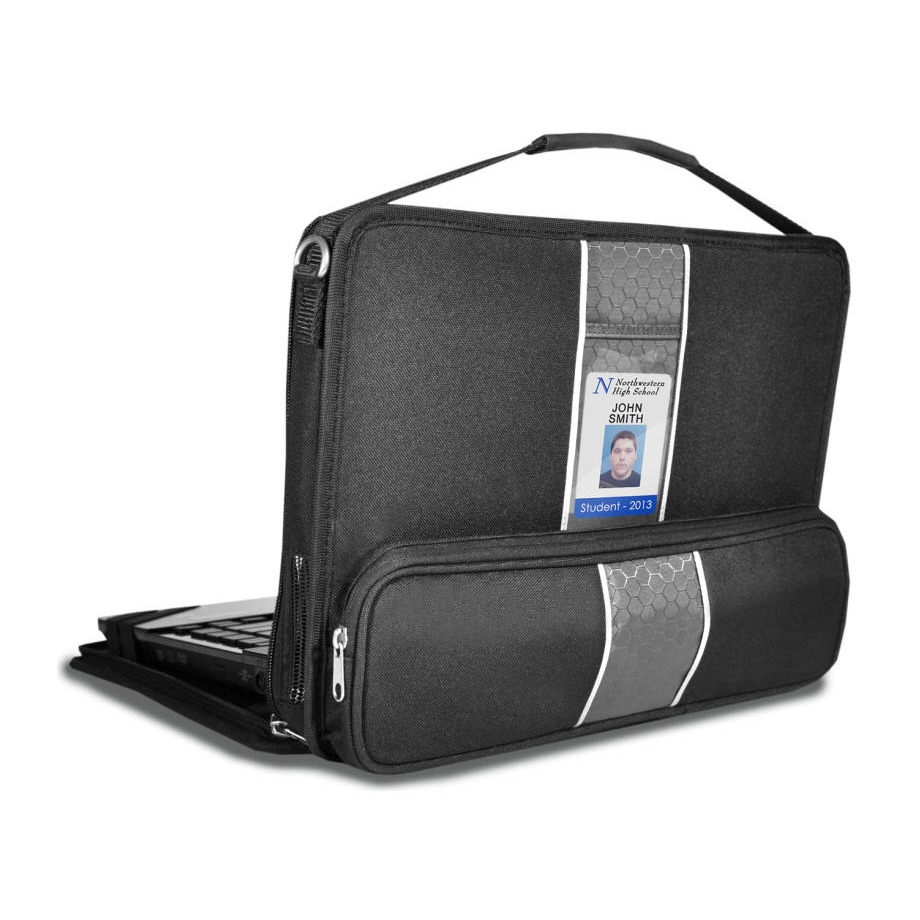
Our device of choice:  the Lenovo x131 Chromebook   


The Carrying Case:  InfoCase (very sturdy; the device need not leave the case to be used)


Also, 
  • MS Teacher laptops will not be replaced at this time
  • We are increasing our bandwidth (for faster internet)
  • There may be a few upgrades that need finished, but by and large, that's about done.
  • Both the larger and smaller (room 146) computer labs will stay functioning as they are at least for next year (for testing purposes).
  • Other physical changes are still being discussed, but it's possible the "fishbowl" will be a technology support center.  Some high school students might also be recruited, esp. for the beginning and end of the day and/or during lunches to assist.


Jan 22, 2014

Jazz Up Your Website

If you're looking to "jazz" up your classroom website, here are some ideas presented at an after-school session.

Peruse below or CLICK HERE for a link to get your own copy of my session resource sheet.

Ask for help if you need it -- I'm glad to help.


Dec 2, 2013

Student Google Logins Are Available


Thanks to Mike, TJ, and Scott for sending out the "all clear" for teachers to begin working with student district Google log ins.

The lists of student user names/ gmail addresses are in a folder on the Staff Shared Directory under “Google Student Account Info”.  You’ll need to know that location if you want to import them for sending of group student emails (instructions for doing that are below).

Information on passwords is provided below:


WHY ARE THESE COMING OUT NOW?

    We’re sending these out now because some teachers have expressed an interest in getting started/ experimenting a bit using Google docs with their students.  In fact, Melanie Strock and Ara Fee (among others) have already started experimenting – Melanie to post, track, and receive assignments and Ara as a way for students to turn in assignments and take quizzes using his website.  Some others would like to use online resources that require a student email.  Please know that nobody is being required to use these now, but there’s certainly no time like the present to get started if you’re ready.    


    WHAT CAN I DO WITH THEM?

    1. Get students into some of the Google Apps (like Google Docs).

     – and if you have a website and would like students to “turn in” Google docs assignments on it, I’ll be showing everyone how to do that in Google Forms training in February, but I’m very happy to show you before then – just let me know and I'll show you how).

    2.  Maybe you’d like to use an online resource and students need emails for registration purposes.

    3.  Once students have email addresses, you can send them email reminders, assignments, make up work, etc. 
    • How can I make contacts out of all those names and send a mass email to all or some of my students at once?
    • To set up groups and create mailing lists for them, here's my how-to video (and as always, I’m also happy to show you in person).


    HOW SHOULD STUDENTS LOG IN? 

    AND how can students get forgotten passwords reset? 
     AND how can I get my own STAFF password reset? 

    Ask students to use the the DISTRICT Google Login. Depending on how a teacher decides to share information, students may not have access to everything if they don't; in addition, students won't need to remember the long log in username.

    The district login link is in 3 places on the MIDDLE SCHOOL edline site: Student Links (Google Apps for Education Log In (District) and Staff Links(Google Apps for Education Log In (District); it’s also the first link under Links.  It’s also on the LV District site).


    WHAT'S THE LOG IN AND PASSWORD? 

    Since this is a public site, please log in using your LV District Google account information and then click HERE.

    I now have access to the dashboard, which allows me to reset passwords & add and delete students; I can also now reset staff passwords, so please let me know of issues related to these functions.